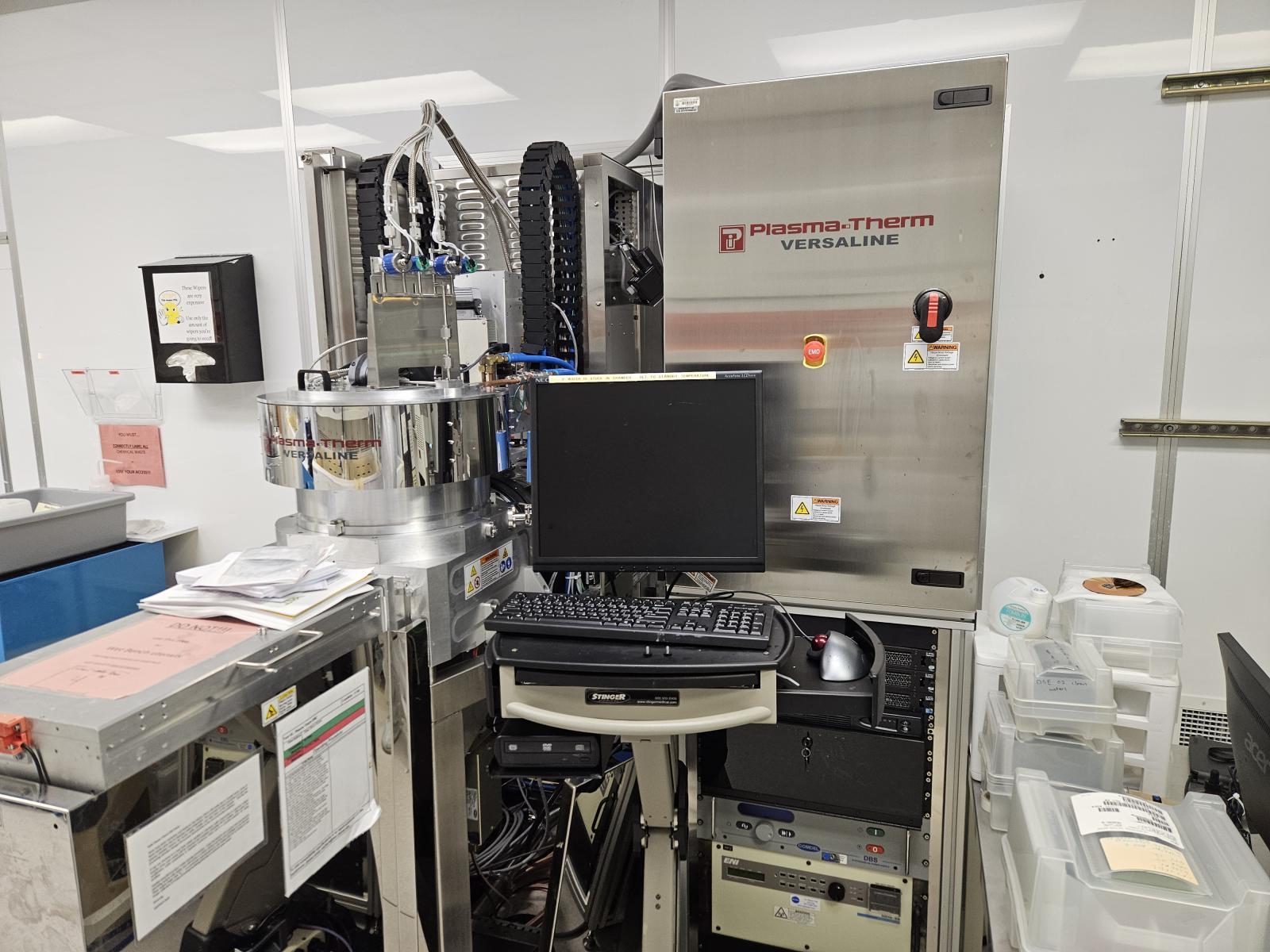
Deep Si Etch
C4F8, SF6, He, Ar, O2
Compatible Materials: Si (to etch with Cr mask, use the ORANGE RIE batchtop)
Incompatible Materials: III-V / Hi K / Metal
For DSE Training:
- This is an Si etcher only. You can use resist, SiO2, or chrome as a masking layer.
- You will need 3-4 samples for the training. It’s best to have thick PR masking layer over Si on a full wafer. We can cleave into smaller pieces. No samples, no training.
- Do not use any samples from your project. The training is to demonstrate the tool and some of your samples will be intentional processed incorrectly.
- This tool requires a 2 day training session, generally a week apart. 1st training session is training, 2ndtraining session is certification test.
- In between the training sessions, you will need to do SEM on the samples we etch. No SEMs not 2ndtraining session.
- The samples etched in the 2ndtraining session, will need to do SEM images complete your training/certification. No SEMs to certification.
- Training is done in the evenings between 430-5pm and last 2-2.5hrs. Rarely on Friday.
Operation procedures:
- Log onto the tool using the LabAccess terminal.
- Log into the tool’s systems software by selecting
“LOGIN” . Type your access and password, select “OK”. - Select "JOBS" then "VENT" to vent the load lock.
The load lock symbol will turn blue when it is vented and the
message will display "ATMOSPHERE". It will take 2 minutes. - Lift the handle to open the load lock. Lock the lid open
by latching and locking the hinge in place. Load the sample with the wafer flat along the first groove and touching to two placement screws. Sample can not be larger than a 4" wafer with 2mm EBR or it will get stuck to the wafer clamp. - A gray wafer icon will appear on the load lock when
the sample is placed on the blades. - Use cautious when closing the load lock lid. The hinge
has four notches to lock the lid open. Press the hinge
forward, slowly lowering the lid closed. - From "JOBS" menu, select the recipe then "START".
The tool will automatically load pump down the load lock
then load the sample. The chamber symbol will display
pink and yellow dots when processing. - When the processing is complete, the wafer symbol
inside the chamber will turn green. - The sample will automatically unload if the "Vent After
Job" is depressed. If not, select "VENT" to manually vent
the load lock. Unload sample and close load lock carefully. - Select "PUMP" to pumpdown the chamber.
- Logout of the tool.
- Logout of the LabAccess terminal.